
|
The world of non-commercial film and A-V |
Events Diary | Search | ||
| The Film and Video Institute |  Join us on Facebook
| ||||
Build a Club Website 5 - Picture and Words
| You have created and put online on the web your new club
website. Anyone, anywhere in the world, who knows the
address can visit it. So we had better give them something
valuable to see. Right now, we have almost empty pages. |
For this trial run do not spend too much time getting the perfect picture and words. That sort of fine-tuning comes a little later. Whatever you do now can (and probably should) be changed later ... | |
Editing onlineIf you are in the browser window showing your lovely, but almost empty new website, close that window and re-open the browser window on the Weebly editing pages. If the "Congratulations" message is still there, click the X at its top right corner to make it disappear. |
||
| Don't worry if you shut
down the Weebly window by mistake.
Just type the Weebly address (www.weebly.com) into your web browser. The site will open. You may be asked to enter your username and password again. Click the Edit Site button and you will see that all your work has been safely saved. |
||
 Then
you will see your website (or a list of websites if you have
been making several!) and three buttons.
Then
you will see your website (or a list of websites if you have
been making several!) and three buttons. |
Editing text and pages online
sometimes feels like working through a layer of treacle. |
|
|
The tabs at the top of this box offer picture sources. The one you will probably use most is MY COMPUTER As illustrated that invites you to drag-and-drop a picture onto the box or to click the "Upload a photo from your computer" button, which lets you navigate to any photo on your computer and choose it. Weebly will adjust its size to fit the page. When you picture appears you can leave it as it is or click on it to make a picture properties box appear:
|
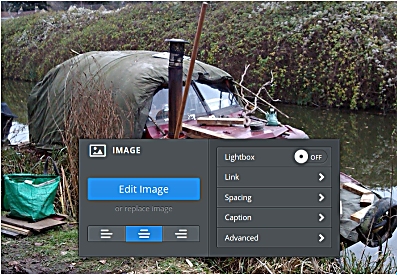 Edit
Image - opens the picture in a special screen with a
toolbar (see below) which lets you crop bits of it and change
its appearance. Edit
Image - opens the picture in a special screen with a
toolbar (see below) which lets you crop bits of it and change
its appearance.or replace image - this easily missed link lets you replace the present image with another one. (justify) - the three images mean put the image on the left, centre or right of the page. Lightbox - turn it on and when website viewers click on the image a larger version of it will be displayed. This is useful when you only want modest sized pictures in the main page. Link - lets you make the picture a link to another page on the website or to another place on the internet. Spacing - lets you make subtle changes to the space around the image. Caption - lets you put a simple caption under the picture. Advanced - includes a way to put different borders round the image. |
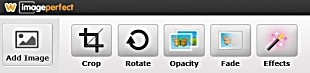 The Edit tools ... we will not go into details
about these options ... have fun experimenting.
The Edit tools ... we will not go into details
about these options ... have fun experimenting. |
| SEARCH Weebly has provided access to a lot of images that you can use on your website. They are all royalty-free. Some are professional pictures for which you must pay a one-off fee of $5 each. Others are free. Many come from picture sites which require a specific credit to the picture's author ... Weebly adds the credit automatically. A field appears asking what you want to search for ... type in "camcorder" and you get something like this: 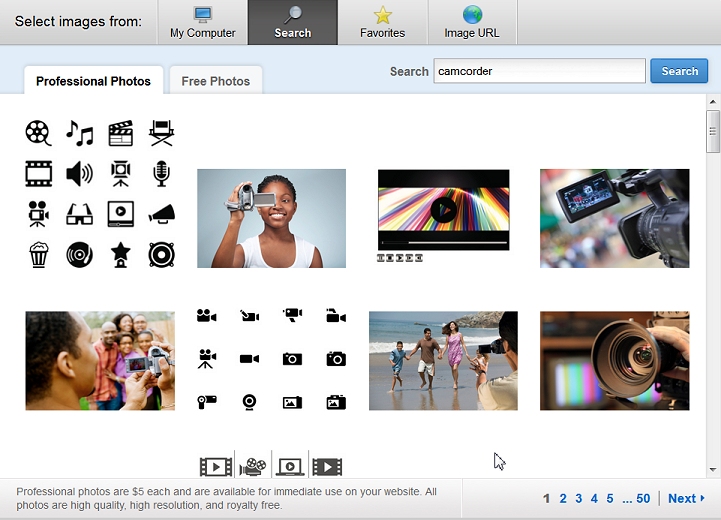 Being mean I automatically click on the"Free Photos" tab and look through them. As you can see at the foot of the box there may be several sets of images to look at - keep clicking "Next". When you click on a picture you are offered the chance to use it immediately or mark it as a favourite (see below). |
| FAVOURITES After a while you may build a collection of images you like or want to use often. These are ones you have marked as favourites in the Search process. |
IMAGE URL This
tab lets you import a picture from somewhere on the internet by
entering an address. This
tab lets you import a picture from somewhere on the internet by
entering an address.When a picture is shown online you can usually right-click on it and choose to "View Image" which presents the picture on its own without all the text and other stuff round it. The picture's URL in then what you see in the browser address bar. You can copy it from there and paste it here, Do be careful not to breach copyright. Most images online are NOT free to use. You can find some in places like Wikimedia Commons that you can use. |
| Note that the pictures on your website will be publicly visible on the internet, so do not break copyright and do choose an appropriate image. When you revise and improve the site later, you can have a set of specially prepared pictures ready. Weebly will adapt the width of the picture to suit the web page space you have given it, but it is sensible to choose a modestly sized image otherwise it takes a long time to send over the internet. |
Editing Text ElementsClick on any text you put on a Weebly page - whether it is a title or paragraph text - and a text toolbar appears above it: 
Drag the mouse over some words to select them, then click the toolbar buttons to:
 Highlight some words as we did above
for "Church Hall" then click the link button and a panel pops
up: Highlight some words as we did above
for "Church Hall" then click the link button and a panel pops
up: |
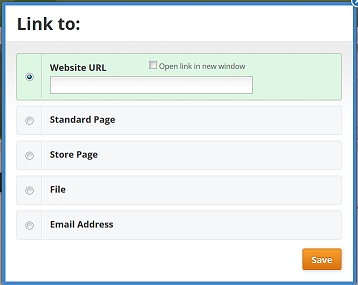 If
you want to link to another website - in this case
perhaps the Church Hall's own website - make sure that the
radio-button left of the "Website URL" field is chosen, then
type or paste the correct web address into it. This will
usually start "http://www ..." Then click in the box just
above it to put a tick in it. Usually you want a link to
another website to open in a new window, so that people can
come back to your website easily. If
you want to link to another website - in this case
perhaps the Church Hall's own website - make sure that the
radio-button left of the "Website URL" field is chosen, then
type or paste the correct web address into it. This will
usually start "http://www ..." Then click in the box just
above it to put a tick in it. Usually you want a link to
another website to open in a new window, so that people can
come back to your website easily.
If you want to link to another page on this website - in this case perhaps the How To Find Us page - make sure the radio-button beside "Standard Page" is selected. You will be shown a list of the pages on the website so select the one you want. If you want to link to a document or picture for people to download select the radio-button beside "File". You can then type or paste in the file's name or click an Upload button which appears and select a file on your computer. If you want to mark the words as an email address - you might give the secretary's name as "Pat Smith", select the name and then choose to link it here. Use the radio-button to select "Email Address" and type or paste in the relevant email address. Then click the Save button. |
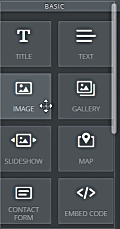 Editing
Picture Elements
Editing
Picture Elements 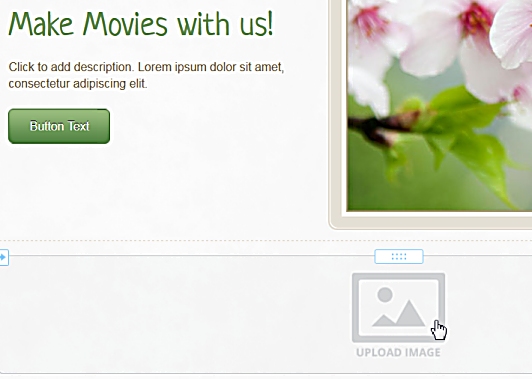
 Click
on that "Upload Image" item and you get an interesting set of
choices:
Click
on that "Upload Image" item and you get an interesting set of
choices:
| Click here for part 6 - building the 'Coming Soon' page |
| Jump to: Getting
started | Weebly
sign up | your first
page | additional
pages
|
Share your passions.
Share your stories.

